
Basic Info
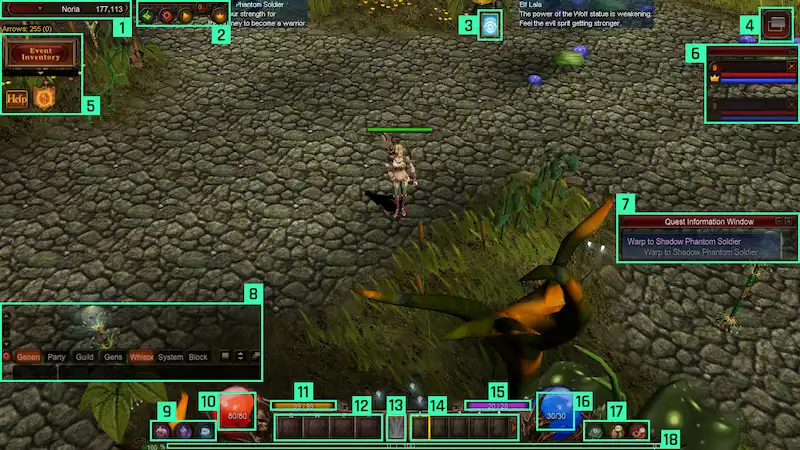
Before you set foot in the Continent of MU, get to know your screen. Every bar, button and window has a job — this page walks through the interface, the currencies, the chat, your stats, the movement command and the hunting logs.
Game Screen Information
- Current channel and channel selector, map coordinates
- Hunting Log, Mu Helper and Helper Plus
- Buffs and Switch Scroll
- Classic Mode – Simple Mode switches
- Minigames, Event Inventory, Help and Event Notifications
- Party
- Quest Information Window
- Chat
- In-game Shop, Character Information (Stats) and Inventory
- Character HP
- Character SD
- Item Slots (Potions)
- Skills configurator and current skill in use
- Skill Slots
- Character AG
- Character Mana
- Quests, Community and System options
- Experience Bars
Zen
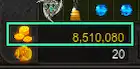
Zen is the most basic currency in Mu Online. Players obtain it through hunting or by selling items to shops, and it is freely tradeable between players.
Ruud
Ruud is a currency used to purchase items and skills from the NPC Priest James. It cannot be traded individually, but it is obtainable through event maps including Chaos Castle, Blood Castle, Devil Square, Illusion Temple, Doppelganger and Empire Guardians: Varka, as well as various game events.
Chat Functions
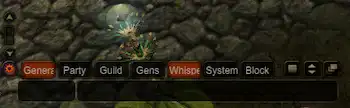
- General, Party, Guild, Gens, Whisper and System chat windows
- Block feature to prevent communication with specific players
- Adjustable transparency and window sizing
Block Chat
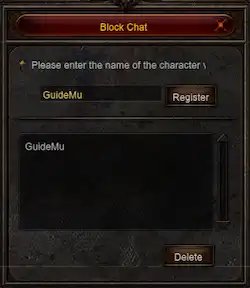
Unwanted players can be added to a blocklist, rendering their messages invisible.
Keyboard Shortcuts
| Key | Function |
|---|---|
| F1 | Help |
| F2 | Block Chat Window |
| F3 | Whisper display ON/OFF |
| F4 | Resize chat window |
| F5 | Chat transparency & General window |
| F9 | Gens window ON/OFF |
| F10 | General window ON/OFF |
| F11 | Party window ON/OFF |
| F12 | Guild window ON/OFF |
| A | Master Skill Tree |
| B | Gens Information |
| C | Character Information |
| D | Command Window |
| E – W | Various item slots & windows |
| CTRL + A | Skill Enhancement Tree |
| END | Hunting Log |
| SPACE | Acquire field item |
| CTRL + F | Switch Mode |
| ENTER | Chat ON/OFF |
| ESC | System Menu |
| TAB | Minimap ON/OFF |
| ALT | Show dropped items |
Check Stats
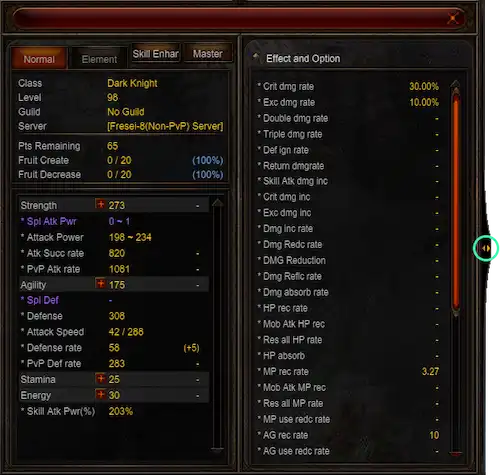
Stat points are used to increase a character's abilities. Players distribute points among Strength, Agility, Stamina, Energy and Command (Dark Lord exclusive). The + button activates whenever you have extra points to spend.
Move Command
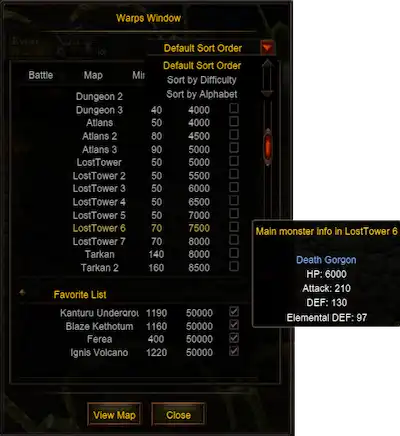
Access it with the M key. White text indicates areas you can reach; red indicates destinations that are unavailable based on your level and Zen. It features difficulty and alphabetical sorting options, with monster information tooltips.
Command System
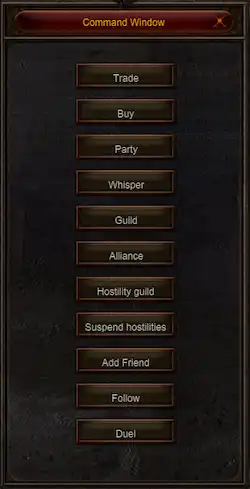
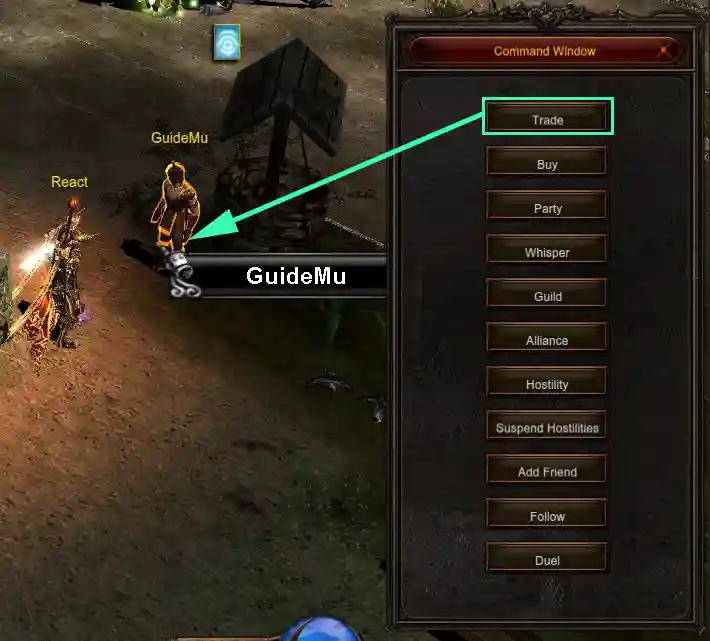
You can use the command window to conveniently access Mu Online community content. Activate it with the D key, select the desired button, then left-click your target.
Hunting Logs

Access it via the END key or the Map option. It displays comprehensive hunting statistics including date, level, duration, damage, kills and experience.
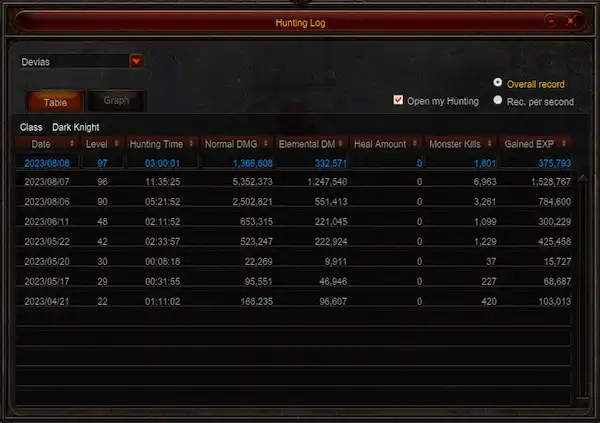
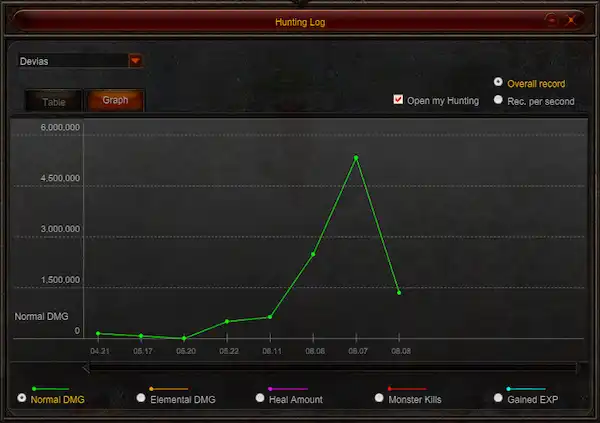
Logs retain 60 days of data, with today's entries highlighted in blue. The graphical display shows the date (X-axis) versus the chosen metric (Y-axis).
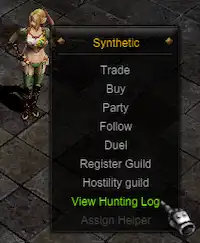
Players can enable log visibility for others. View another player's logs using the Alt + right-click menu selection.