Launcher
The launcher is the small application you open every time you play. It does three jobs: it keeps your game files up to date, it shows you what is happening on the server right now, and it starts the game. You never launch the game executable directly — always go through the launcher, otherwise you will be running outdated files.
If you don’t have it installed yet, follow the Install guide first.
How the update works
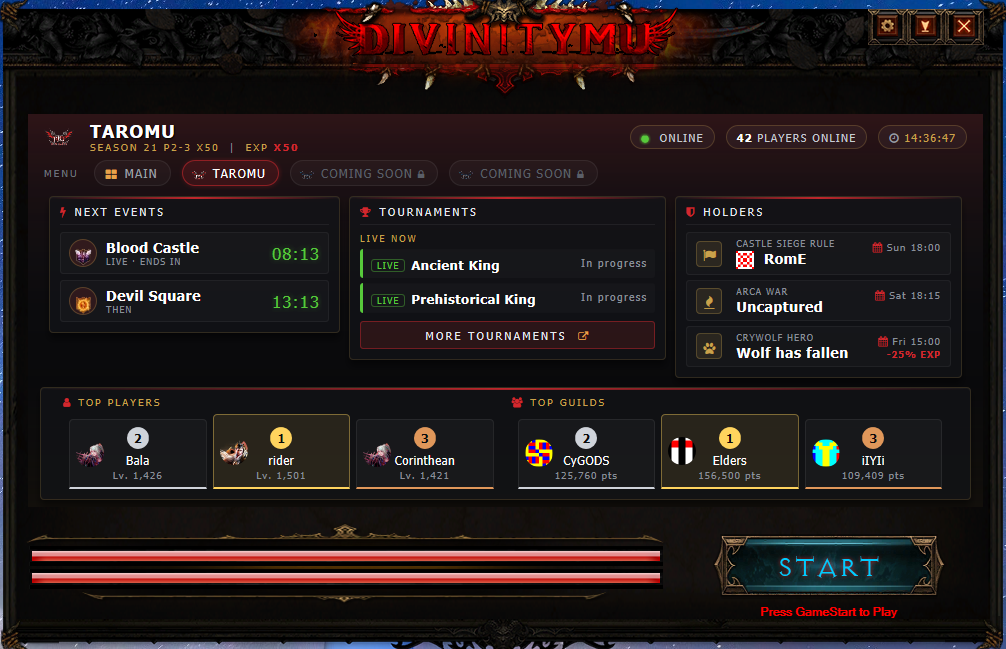
Every time you open the launcher it checks the server for new game files. If anything changed, the two bars at the bottom fill up while the files download — the top bar is the current file, the bottom one is the overall progress. When everything is done the button turns blue and Press GameStart to Play appears underneath it.
This is also how patches reach you: when we release a new season, a new event or a client fix, you don’t download anything manually — you simply open the launcher and it pulls the changes in. Do not close it while the bars are moving, or the client can be left with half-written files.
What the launcher shows you
The main window is a live dashboard. Everything on it refreshes by itself while the launcher is open — the countdowns tick every second, the player count and the rest of the data are pulled from the website every couple of minutes. You never need to press refresh.
The MENU strip — switching views
Right under the server name is a row of tabs. Main is the shared news page for the whole network; next to it is one tab per server (for example TaroMU). Tabs marked Coming Soon with a padlock are servers that haven’t opened yet — they will become clickable on launch day. Click any tab to switch the dashboard to that server; the launcher remembers the last one you looked at.
The server header
The bar at the top of the dashboard tells you, at a glance, what you are connecting to and whether it is up:
- Server name and version — for example Season 21 P2-3 X50, followed by the EXP rate.
- ONLINE with a green dot — the game server is reachable. If it turns red the server is down or restarting.
- Players Online — the same number shown on the website, updated every few seconds.
- The clock — this is server time, not your computer’s time. Every event schedule on the server follows this clock, so use it when you plan around events.
Next Events
Shows the next two events with a live countdown. An event that is already running is marked LIVE · ends in and the timer shows how long you still have to join; the others show Up Next and Then, counting down to the moment they start. Timings come straight from the server configuration, so what you see here is exactly when the event fires in game.
The full schedule for every event, with rules and rewards, is in the Events section of this guide.
Tournaments
Lists the tournaments running at this moment under Live Now. If nothing is running the card simply says so. More Tournaments opens the full tournament page on the website in your browser, where you can see standings, rules and prizes.
Holders
Who currently owns the three big server-wide contests, along with the date and time of the next one:
- Castle Siege Rule — the guild holding the castle, shown with its emblem. That guild sets the Lord Tax and controls the castle’s benefits until the next siege.
- Arca War — the guild holding Arca. If nobody won the last one it shows Uncaptured.
- Crywolf Hero — whether the Wolf Altar was defended. If it says Wolf has fallen, a red −25% EXP tag appears next to it: the penalty is server-wide and applies to every player until the next Crywolf is won. This is the single most important line on the dashboard — it directly changes how fast you level.
Details for each of them: Arca War and the Experience System page, which shows the penalty applied in the EXP calculator.
Top Players and Top Guilds
The podium at the bottom shows the top three of each ranking, exactly as on the website. Players are listed with their class icon and their progress — Total Level once they pass 400, otherwise the level plus reset count. Guilds show their emblem and their score. Clicking any of them opens that character’s or guild’s page on the website.
The Main tab — news
The Main tab collects announcements from every server in one place. The newest one gets the large banner on the left; the rest are listed on the right with a small thumbnail, the category, which server it belongs to and the date. Clicking any of them opens the full article in your browser.
The header of this tab also shows the total number of players online across all servers, refreshed automatically.
Settings
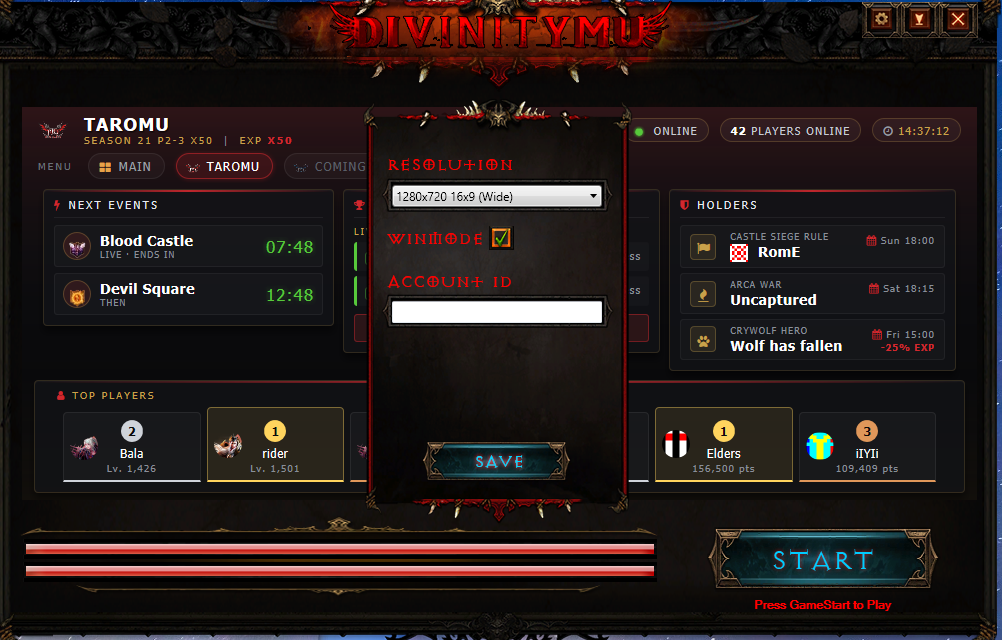
The three small buttons in the top-right corner of the launcher are, from left to right: Settings (the gear), Minimize and Close. Open the gear to configure how the game starts.
Resolution
The resolution the game runs at, picked from the list of modes your monitor supports (for example 1280x720 16x9 (Wide)). Choose a widescreen mode that matches your monitor’s aspect ratio — picking a 4:3 mode on a widescreen display will stretch the image. If the game refuses to start or shows a black screen, come back here and try a lower resolution.
Winmode
Ticked, the game runs in a window instead of fullscreen. This is what you want if you play several clients at once, or if you need to alt-tab to your browser often — switching away from a fullscreen client is slower and can occasionally crash the game. Unticked, the game takes over the whole screen.
Account ID
Optional convenience field: type your account name here and it will be filled in automatically on the login screen, so you only have to type the password. Leave it empty if you share the computer.
Press Save to apply. The settings are written to the game folder and are used the next time you press START.
Starting the game
Once the launcher says Press GameStart to Play, press the big START button. The client opens, you pick your server channel, and you log in with your website account. That whole flow is covered step by step at the end of the Install guide.
If something goes wrong
- The launcher won’t open at all — check that your antivirus hasn’t quarantined it, then run it as Administrator.
- The update never finishes — Administrator rights, antivirus exclusions, and make sure the game is not installed under
Program Files. - The dashboard is empty or the counters show nothing — the launcher needs an internet connection to load the news and statistics. This does not stop you from playing: press START anyway.
- START does nothing — open Settings and lower the resolution, or tick Winmode; a display mode your monitor cannot handle is the usual cause.
- The clock looks wrong — it is intentional. The launcher shows server time, which may differ from your local time zone.